> ## Documentation Index
> Fetch the complete documentation index at: https://docs.findly.ai/llms.txt
> Use this file to discover all available pages before exploring further.
# Integrating with Google Analytics (GA4)
> Learn how to connect your Google Analytics 4 (GA4) data to Findly.
 ## Connecting to Google Analytics
### Step 1
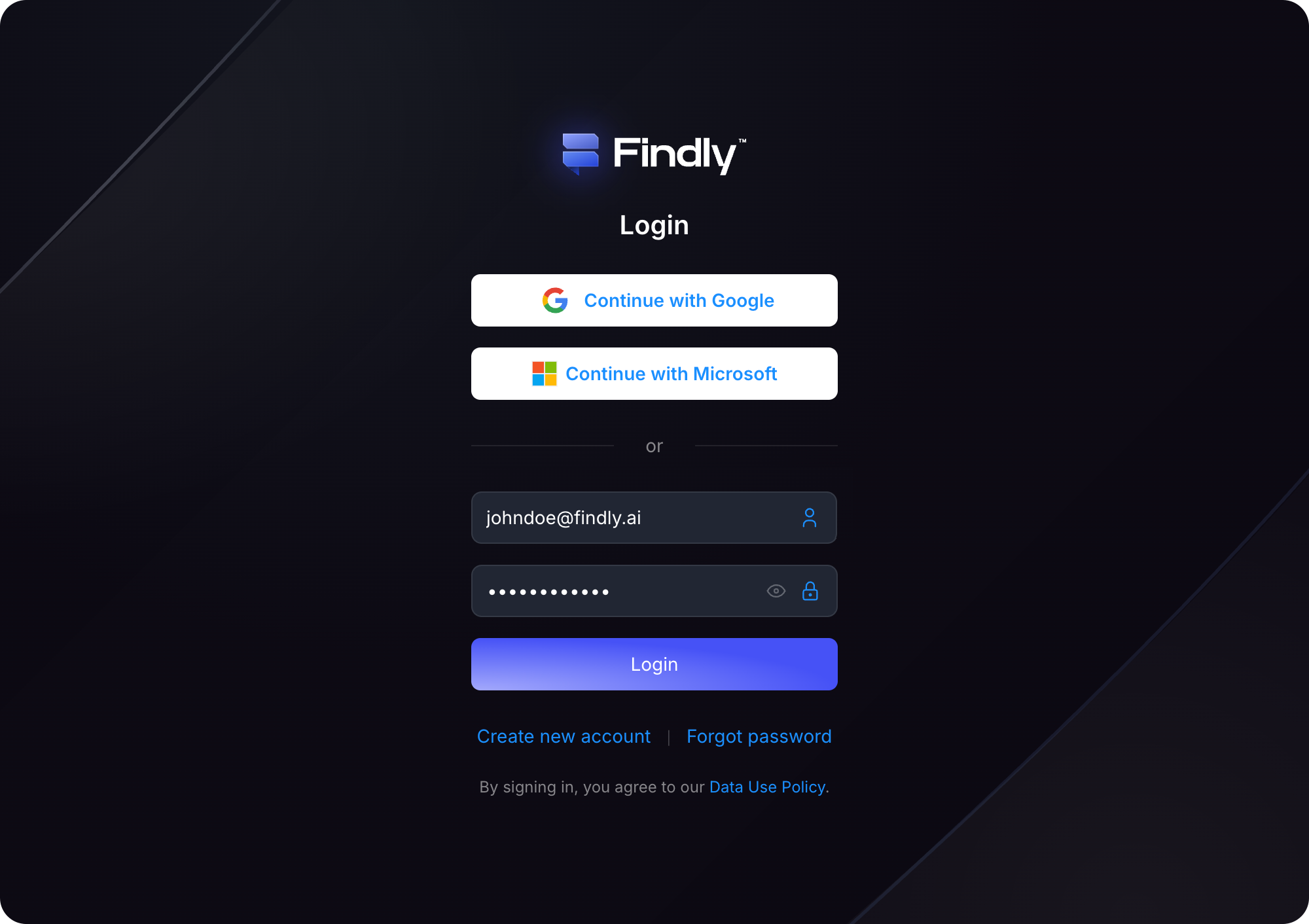
Sign in to your Findly account on the [dashboard](https://dashboard.findly.ai) page.
## Connecting to Google Analytics
### Step 1
Sign in to your Findly account on the [dashboard](https://dashboard.findly.ai) page.
 ### Step 2
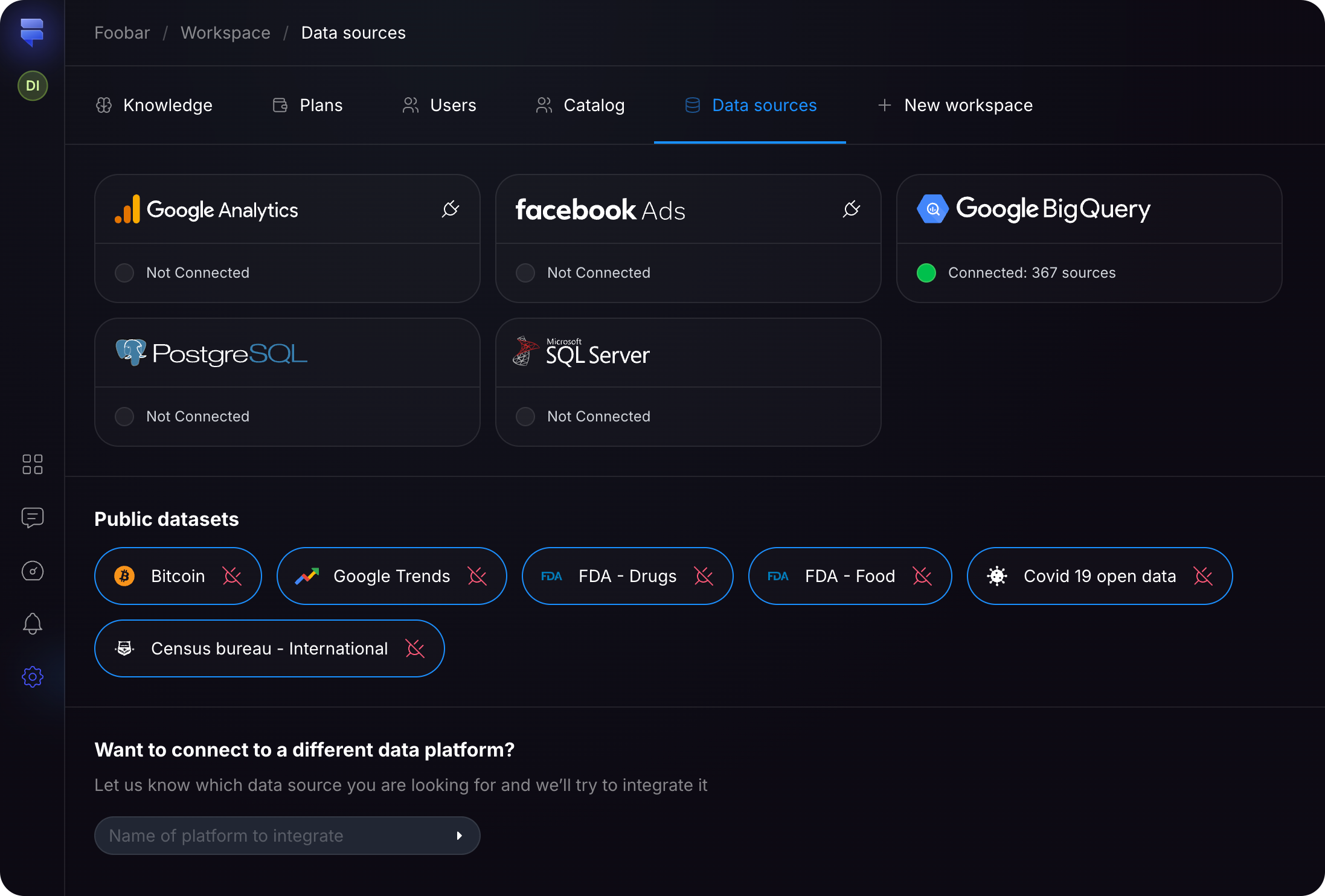
Navigate to the [Data Sources](https://dashboard.findly.ai/app/data-sources) page and click the **Google Analytics** card.
### Step 2
Navigate to the [Data Sources](https://dashboard.findly.ai/app/data-sources) page and click the **Google Analytics** card.
 ### Step 3
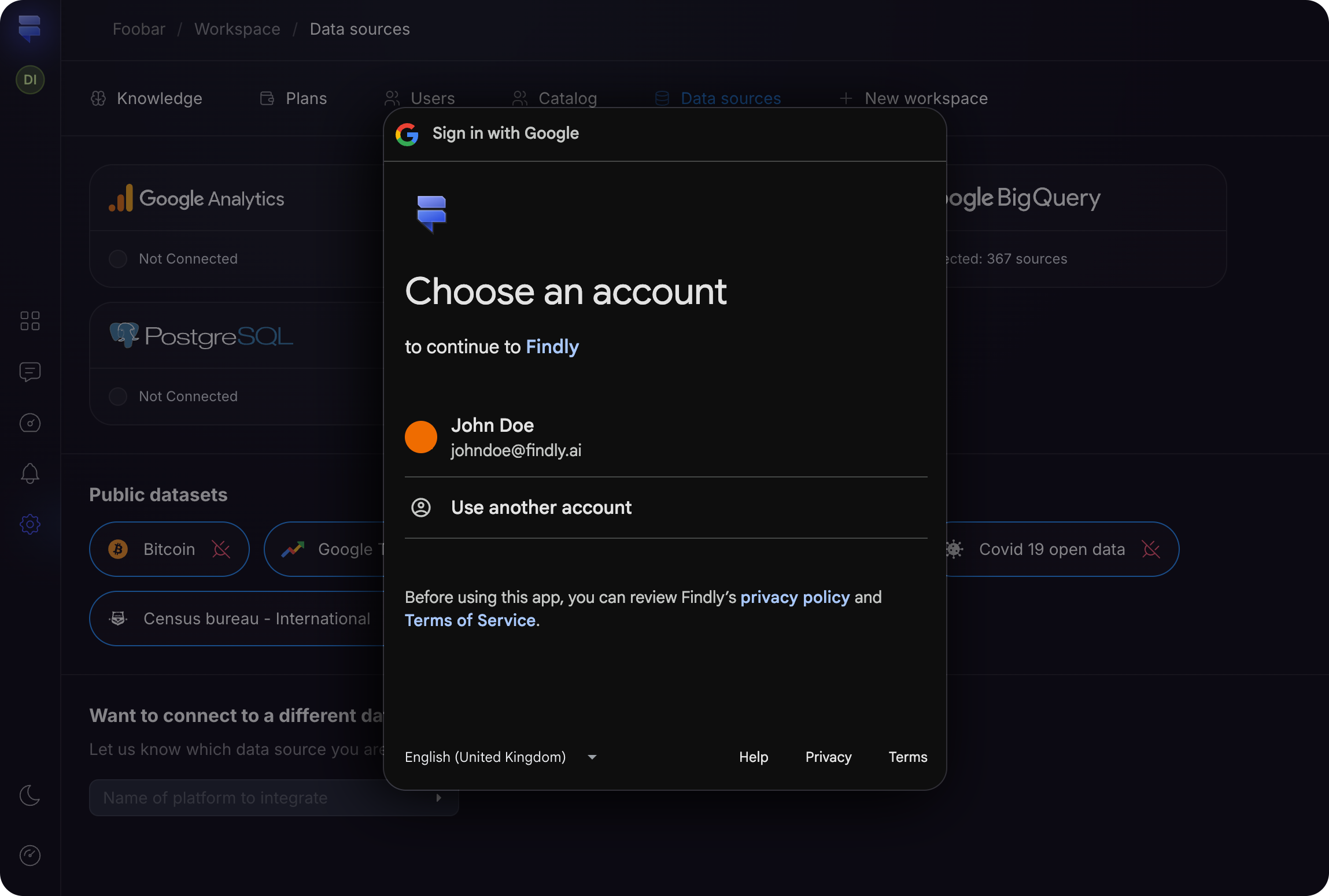
Follow the Google authorization prompts to grant Findly access to your Google Analytics data.
### Step 3
Follow the Google authorization prompts to grant Findly access to your Google Analytics data.
That's it! ✨ You've successfully integrated your Google Analytics data with Findly. Now you can begin creating insightful reports and dashboards using your GA4 data.