> ## Documentation Index
> Fetch the complete documentation index at: https://docs.findly.ai/llms.txt
> Use this file to discover all available pages before exploring further.
# Integrating with Google BigQuery
> Learn how to connect your Google BigQuery data warehouse to Findly.
 Connecting to Google BigQuery requires an Enterprise plan. [View
Pricing](https://www.findly.ai/pricing) for details.
## Connecting to BigQuery
### Step 1
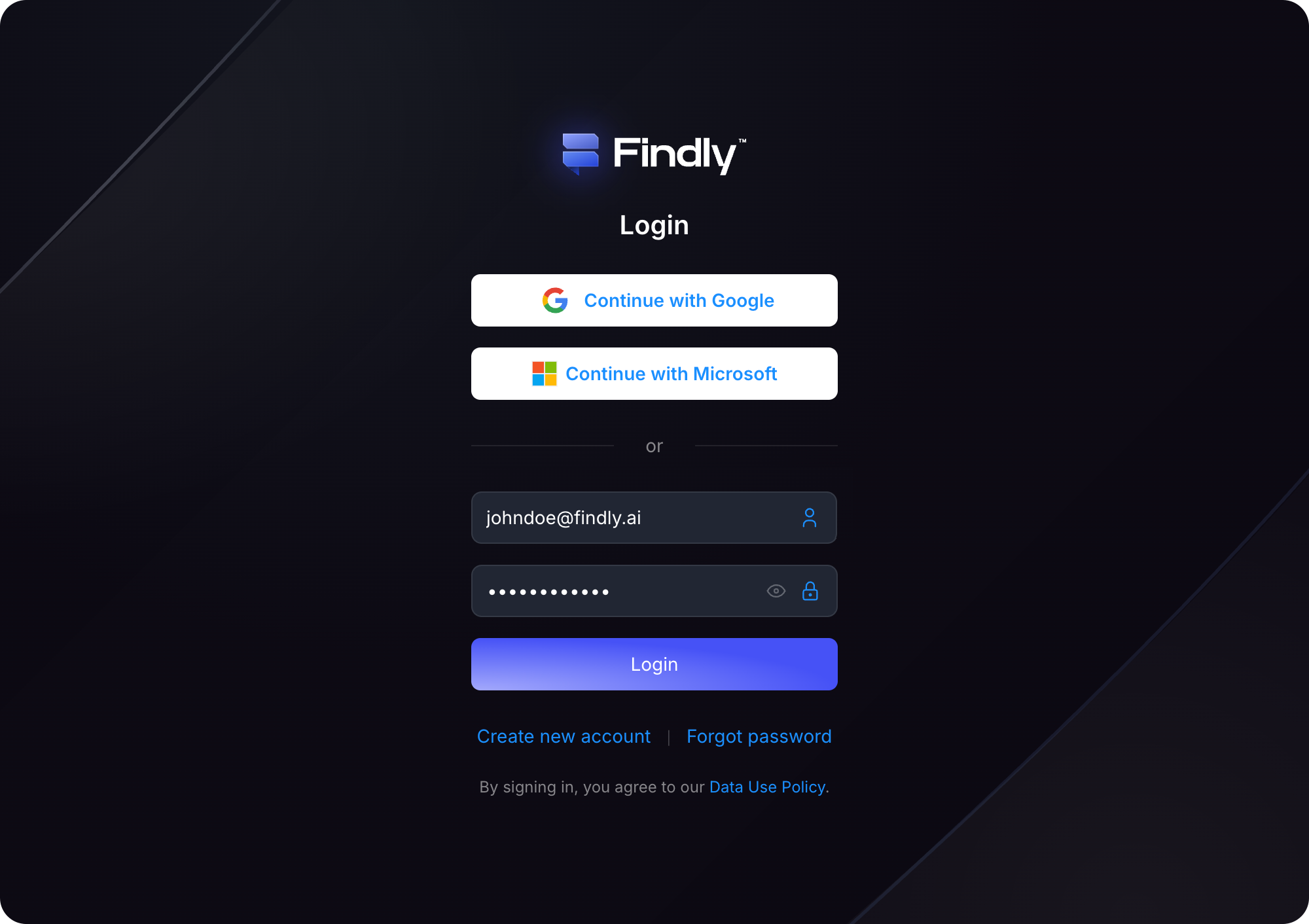
Sign in to your Findly account on the [dashboard](https://dashboard.findly.ai) page.
Connecting to Google BigQuery requires an Enterprise plan. [View
Pricing](https://www.findly.ai/pricing) for details.
## Connecting to BigQuery
### Step 1
Sign in to your Findly account on the [dashboard](https://dashboard.findly.ai) page.
 ### Step 2
Navigate to the [Data Sources](https://dashboard.findly.ai/app/data-sources) page and click the **Google BigQuery** card.
### Step 2
Navigate to the [Data Sources](https://dashboard.findly.ai/app/data-sources) page and click the **Google BigQuery** card.
 ### Step 3
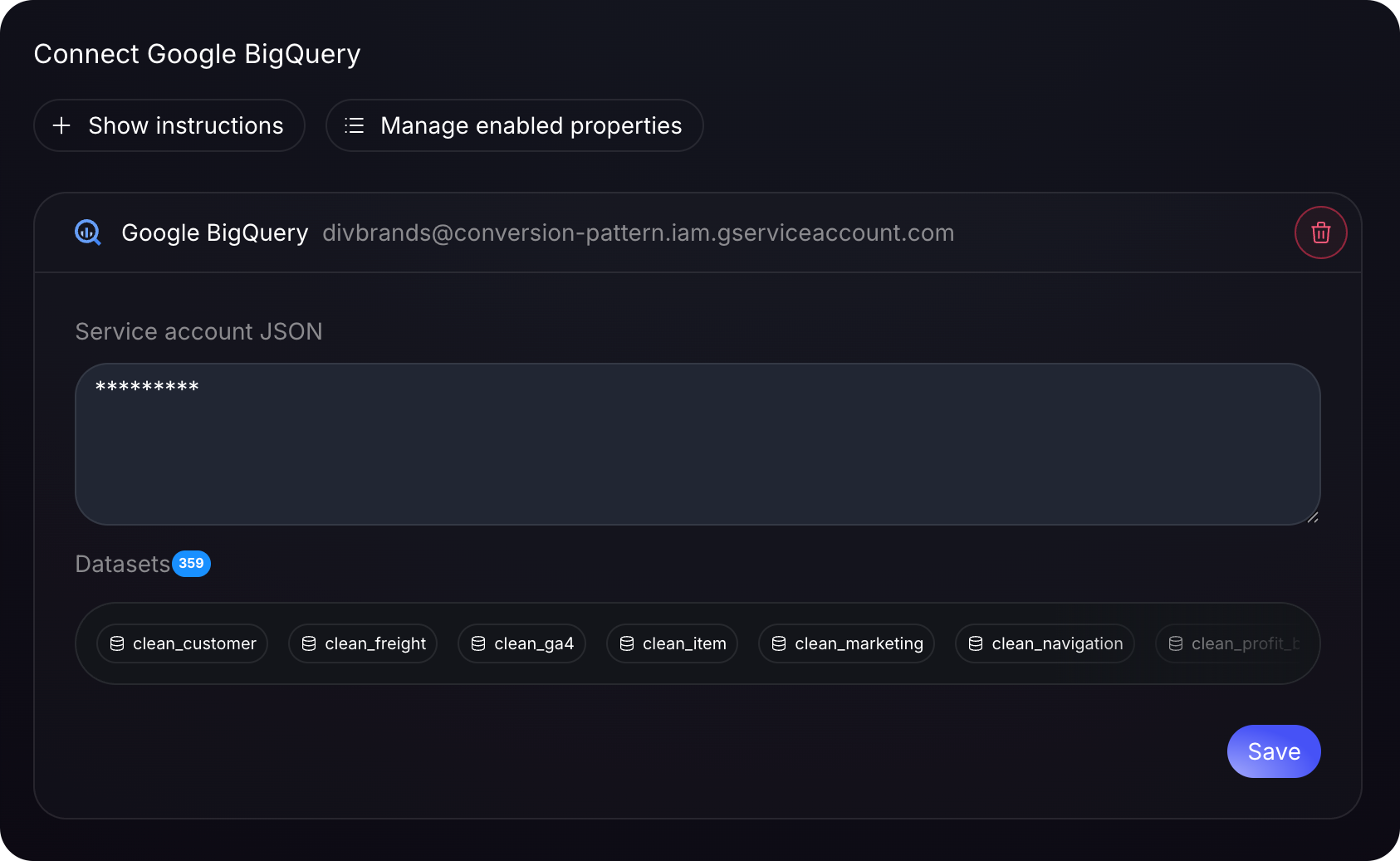
Enter your connection details (e.g., project ID, dataset ID, authentication method details). Once all required fields are completed, click the **Connect** button.
Ensure you test the connection before saving the configuration.
### Step 4
Once connected, you can begin configuring your semantic model, including measures, dimensions, and tables. [Learn more about defining measures](/docs/app/catalog/measures).
### Step 3
Enter your connection details (e.g., project ID, dataset ID, authentication method details). Once all required fields are completed, click the **Connect** button.
Ensure you test the connection before saving the configuration.
### Step 4
Once connected, you can begin configuring your semantic model, including measures, dimensions, and tables. [Learn more about defining measures](/docs/app/catalog/measures).
